 Database Configuration
Database Configuration is available in the Advanced Edition only.
The Database Settings admin page lets you control what data is synced into your cloud database. You can access it from the App Settings menu.
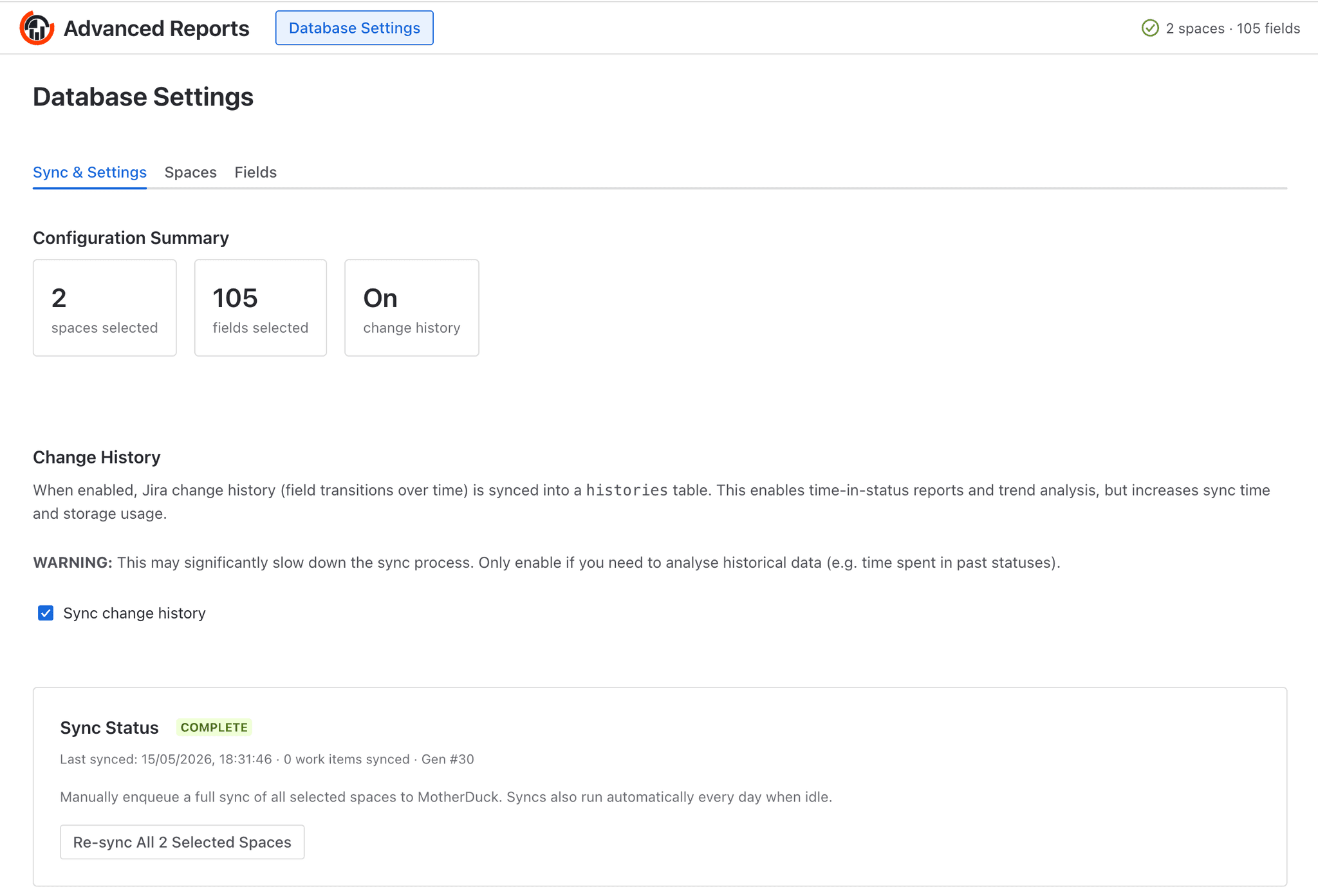
Database Settings — Sync & Settings overview
The page is divided into three tabs: Sync & Settings, Spaces, and Fields.
Spaces
The Spaces tab lets you choose which Jira projects are included in the database. Only work items from selected projects will be synced and available for querying in Cloud Insights.
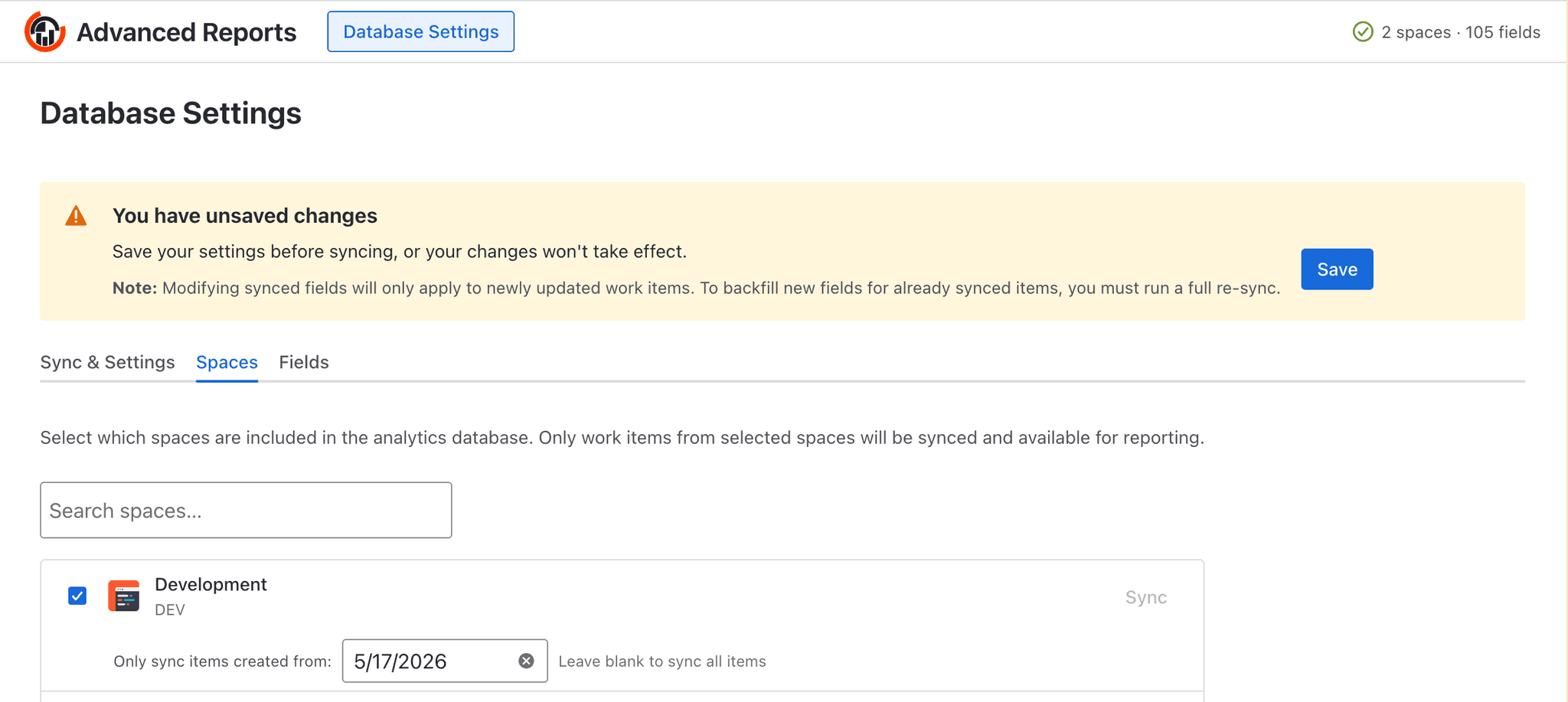
Database Settings — Spaces tab
For each selected project you can optionally set an "Only sync items created from" date. This is useful for large projects where you only care about recent work — limiting the date range reduces the amount of data synced, which makes the initial sync faster and keeps the database smaller.
Leave the date blank to sync all items regardless of when they were created.
Fields
The Fields tab lets you choose which Jira fields are included as columns in the database. Including only the fields you actually use in your queries keeps the database lean and speeds up sync.
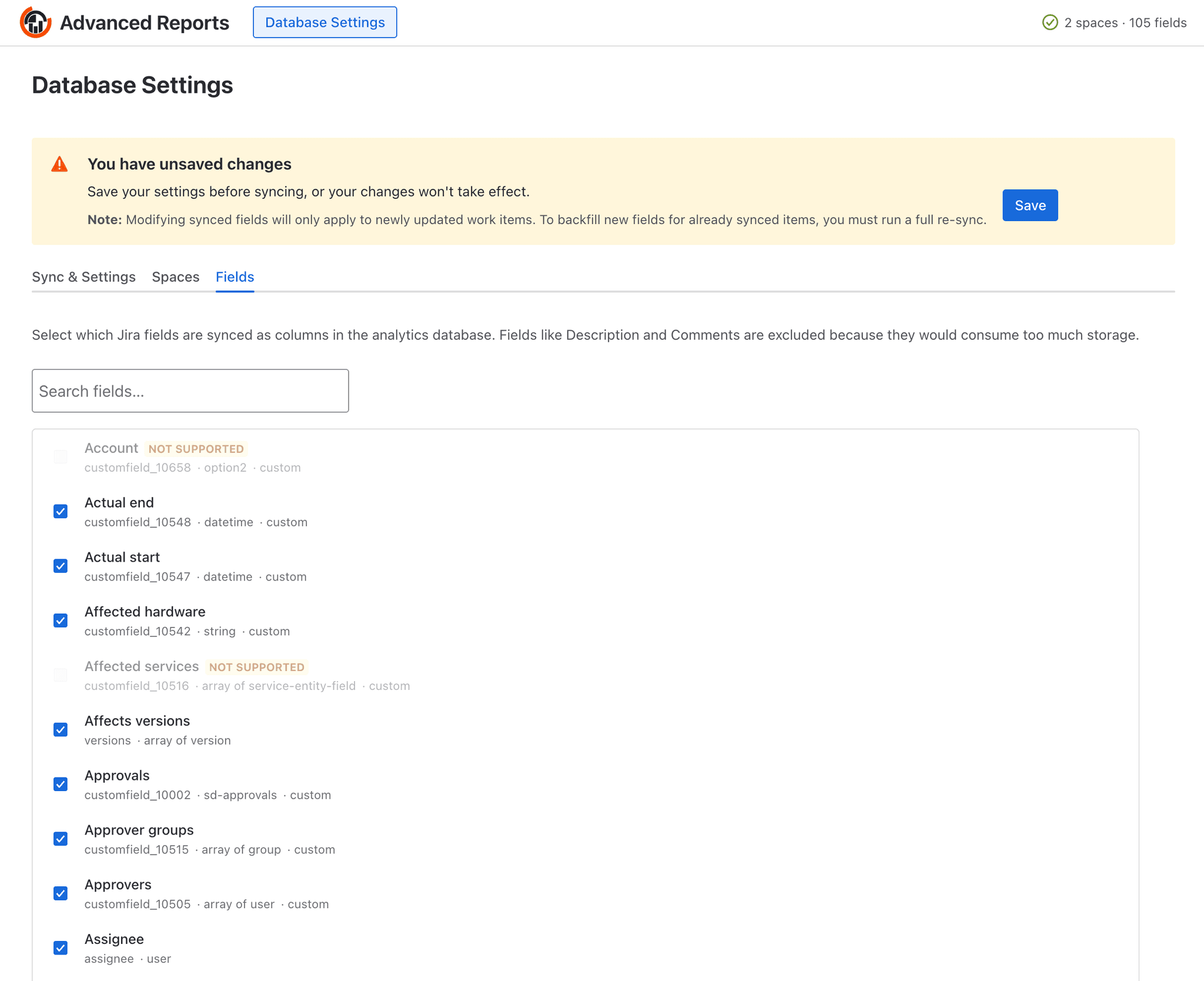
Database Settings — Fields tab
Some fields are marked NOT SUPPORTED — these are field types that cannot be stored in the database (for example, rich-text fields like Description and Comments).
If you enable a new field after the database has already been populated, it will only appear on work items that are updated going forward. To backfill the field on all existing items, run a full re-sync using the Re-sync All Selected Spaces button on the Sync & Settings tab.
Change History
On the Sync & Settings tab you can toggle Sync change history. When enabled, every field transition for every work item is stored in a histories table. This is what powers time-in-status reports, cycle time analysis, and other trend-based queries.
Because change history can be large, it is off by default. Enable it only when you need historical analysis — it will increase both sync time and storage usage.
How sync works
Once your spaces and fields are configured, the app keeps the database up to date automatically:
- Daily automatic sync — Once per day, the app checks for any work items that changed since the last sync and brings those changes into the database. Only the items that actually changed are processed.
- Manual sync — You can trigger an immediate full sync at any time using the Re-sync All Selected Spaces button. This re-fetches all work items from scratch for every selected project and is useful after changing your field or space configuration.
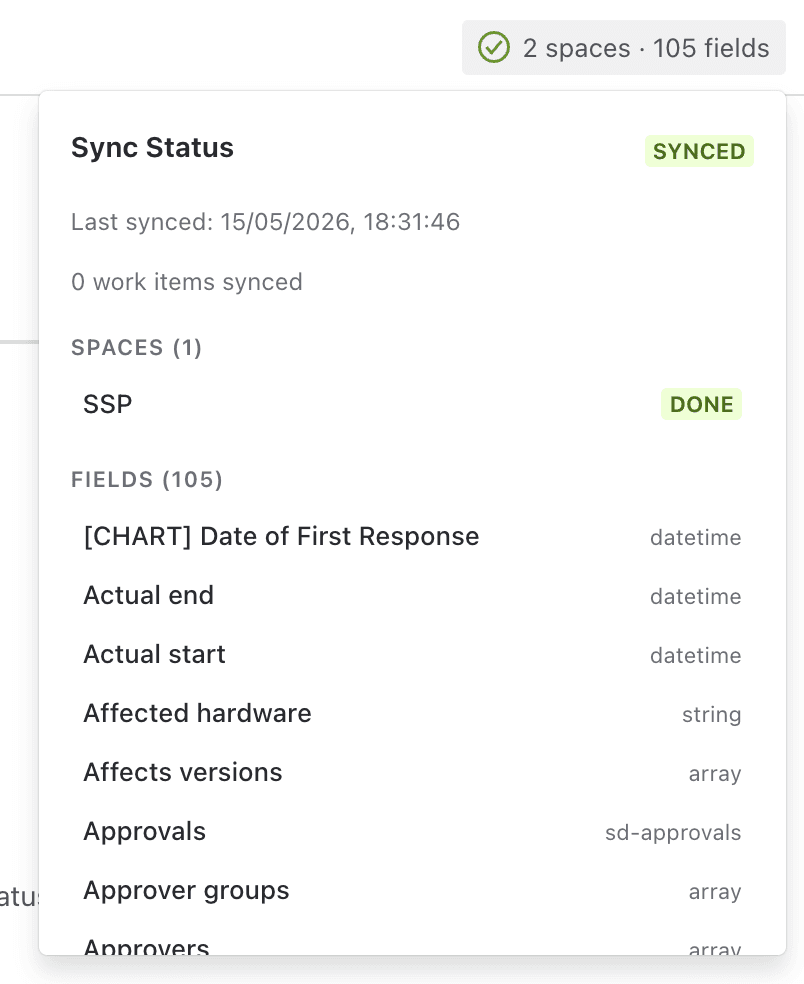
Sync status panel
The sync status panel (accessible from the top-right badge) shows the last sync time, how many items were synced, and the per-project status so you can quickly confirm everything is up to date.
If the system detects that a previous sync stopped making progress for more than 30 minutes, it will automatically restart a full sync to make sure nothing was missed.