 Time in Status
How long do your work items sit in each status? Time in Status analysis answers questions like:
- Where do work items spend most of their time — and where are the bottlenecks?
- How long does review or testing really take for different work item types?
- Which items have been stuck in their current status the longest?
- Are we meeting our SLAs for response and resolution times?
Unlike dedicated single-purpose apps, Advanced Reports gives you full SQL access to the underlying status-change data. Any breakdown you can express in SQL — per status, per work item, per type, per assignee, per project, percentiles, trends over time — is a single query away, and the results can be turned into charts and embedded in reports.
How it works
When Sync change history is enabled in the Database Configuration, every field transition is stored in the histories table (see the database schema):
| Column | Description |
|---|---|
work_item_id | The ID of the work item |
date | When the field changed to this value |
field_id | The field that changed ('status' for status transitions) |
value | The ID of the value the field changed to |
seconds_in_state | How long (in seconds) the work item held this value |
Time in Status analysis boils down to filtering this table on field_id = 'status' and aggregating seconds_in_state.
seconds_in_state is NULL for the value a field holds right now — the
clock is still running. To include time spent so far in the current status,
use COALESCE(seconds_in_state, EPOCH(NOW() - date)).
Time in each status, per work item
The fundamental query: total time each work item spent in every status, including time accrued so far in the current status.
Example Result:
| work_item_key | status_name | days_in_status |
|---|---|---|
| PROJ-123 | In Progress | 4.2 |
| PROJ-123 | In Review | 1.0 |
| PROJ-123 | To Do | 0.5 |
| PROJ-456 | In Progress | 8.7 |
-- Note: Ensure the 'status' field is selected in the Database Configuration
SELECT
    i."key" AS work_item_key,
    s.name AS status_name,
    ROUND(SUM(COALESCE(h.seconds_in_state, EPOCH(NOW() - h.date))) / 86400.0, 1) AS days_in_status
FROM histories h
JOIN work_items i ON h.work_item_id = i.id
JOIN statuses s ON h.field_id = 'status' AND h.value = s.id
GROUP BY i."key", s.name
ORDER BY i."key", days_in_status DESC;
Time in Status report (statuses as columns)
The classic Time in Status report: one row per work item, one column per status. DuckDB's PIVOT (opens in a new tab) statement creates the status columns dynamically — no need to list your statuses by hand.
Example Result:
| work_item_key | To Do | In Progress | In Review | Done |
|---|---|---|---|---|
| PROJ-123 | 1.5 | 4.2 | 1.0 | 12.3 |
| PROJ-456 | 0.3 | 8.7 | 2.5 | 5.1 |
| PROJ-789 | 6.0 | 2.1 | 0.5 | 1.8 |
-- Note: Ensure the 'status' field is selected in the Database Configuration
PIVOT (
    SELECT
        i."key" AS work_item_key,
        s.name AS status_name,
        COALESCE(h.seconds_in_state, EPOCH(NOW() - h.date)) / 86400.0 AS days_in_status
    FROM histories h
    JOIN work_items i ON h.work_item_id = i.id
    JOIN statuses s ON h.field_id = 'status' AND h.value = s.id
)
ON status_name
USING ROUND(SUM(days_in_status), 1)
GROUP BY work_item_key
ORDER BY work_item_key;
Average and median time per status
Where does work wait the longest? Averages are easily skewed by outliers, so include the median (and add higher percentiles if you need them — see Bottleneck Detection for a 95th-percentile variant).
Example Result:
| status_name | avg_days | median_days | transitions |
|---|---|---|---|
| Waiting for Approval | 8.5 | 5.2 | 48 |
| In Review | 3.1 | 2.4 | 187 |
| In Progress | 2.8 | 2.1 | 203 |
| To Do | 1.9 | 0.8 | 215 |
-- Note: Ensure the 'status' field is selected in the Database Configuration
SELECT
    s.name AS status_name,
    ROUND(AVG(h.seconds_in_state) / 86400.0, 1) AS avg_days,
    ROUND(PERCENTILE_CONT(0.5) WITHIN GROUP (ORDER BY h.seconds_in_state) / 86400.0, 1) AS median_days,
    COUNT(*) AS transitions
FROM histories h
JOIN statuses s ON h.field_id = 'status' AND h.value = s.id
WHERE h.seconds_in_state IS NOT NULL
GROUP BY s.name
ORDER BY avg_days DESC;
Items stuck in their current status
Find the work items that have been sitting in their current status the longest — ideal for a "needs attention" report or dashboard.
Example Result:
| key | status_name | days_in_current_status |
|---|---|---|
| PROJ-310 | Waiting for Approval | 21.4 |
| PROJ-287 | In Review | 14.8 |
| PROJ-455 | In Progress | 9.2 |
-- Note: Ensure the 'status' field is selected in the Database Configuration
SELECT
    i."key",
    s.name AS status_name,
    ROUND(EPOCH(NOW() - h.date) / 86400.0, 1) AS days_in_current_status
FROM histories h
JOIN work_items i ON h.work_item_id = i.id
JOIN statuses s ON h.field_id = 'status' AND h.value = s.id
WHERE h.seconds_in_state IS NULL -- current status only
ORDER BY days_in_current_status DESC
LIMIT 20;
Cycle time from status categories
Instead of tracking individual statuses, you can aggregate by Jira's status categories (To Do / In Progress / Done) via the status_categories lookup table. Summing the time spent in the "In Progress" category gives a robust cycle time measure even when teams use different workflow statuses.
Example Result:
| work_item_key | cycle_time_days |
|---|---|
| PROJ-123 | 5.2 |
| PROJ-456 | 11.2 |
| PROJ-789 | 2.6 |
-- Note: Ensure the 'status' field is selected in the Database Configuration
SELECT
    i."key" AS work_item_key,
    ROUND(SUM(h.seconds_in_state) / 86400.0, 1) AS cycle_time_days
FROM histories h
JOIN work_items i ON h.work_item_id = i.id
JOIN statuses s ON h.field_id = 'status' AND h.value = s.id
JOIN status_categories sc ON sc.id = s.statusCategoryId
WHERE sc.name = 'In Progress'
    AND h.seconds_in_state IS NOT NULL
GROUP BY i."key"
ORDER BY cycle_time_days DESC;
Filtering and slicing
All of the queries above can be narrowed down with ordinary SQL. Common patterns:
- By project: add
WHERE i.project_key = 'PROJ'(or join theprojectstable). - By date range: add
WHERE i.resolutiondate >= current_date - INTERVAL '90' DAYto analyse only recently completed items. - By work item type: join
issuetypes it ON it.id = i.issuetypeand group byit.name— see Average Time in Status by Work Item Type. - By assignee: join
users u ON u.id = i.assigneeand group byu.displayName.
Visualizing Time in Status
Any of these queries can be turned into a chart — for example, a stacked bar chart of the per-work-item query, with one bar per work item segmented by status, or a bar chart of average days per status.
You can also skip the SQL entirely and ask AI to build the analysis for you — the AI Assistant in the Insights editor or the AI Explorer (Advanced Edition) can generate both the query and the chart from a prompt like:
Show me a stacked bar chart of how many days each work item in project TP spent in each status.
The AI Explorer responds with key observations, the generated chart, and the underlying SQL and chart spec — and the result can be saved as an Insight for reuse in reports.
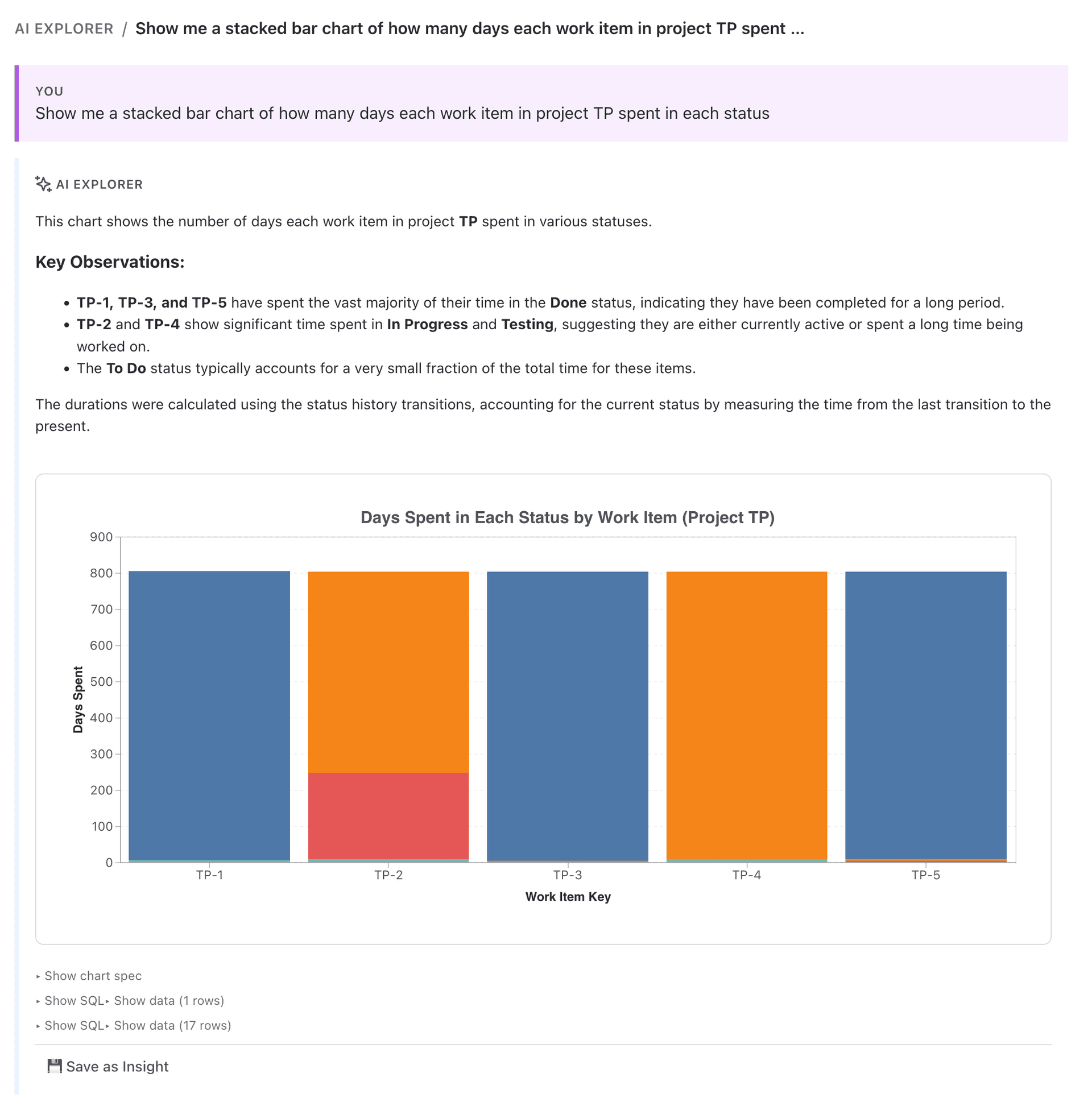
AI Explorer generating a Time in Status stacked bar chart
For more history-based queries, including bottleneck detection with statistical significance, see the SQL Query Examples page.